
GAxHub: Gaming Hub & Launcher
MC TechLibraries & Demo
4.3337.00 Reviews
- Version
- 1.6.7
- Installs
- 1.00M
- Age Rating
- Everyone
Screenshots
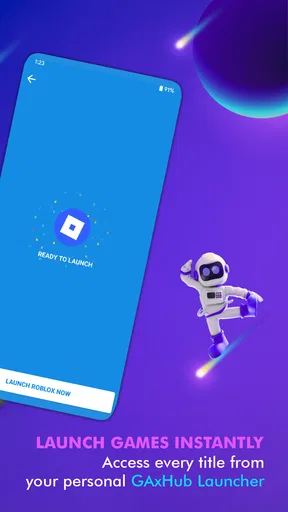
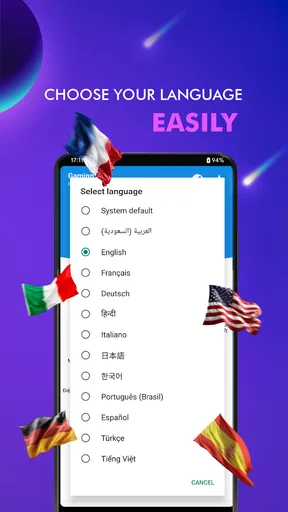
Our Review of GAxHub: Gaming Hub & Launcher
 Analysis by Appyee
Hey there! So, you've probably heard about the Gaming Hub: Game Launcher App floating around in the app stores, right? Well, I took it for a spin, and I'm here to spill the beans on what it's all about. Whether you're a hardcore gamer or just someone who dabbles in mobile games, this app promises to be your new best friend. Let's dive into what makes this app tick, and where it fits into a practical gaming routine.
A useful starting point for a mixed game library
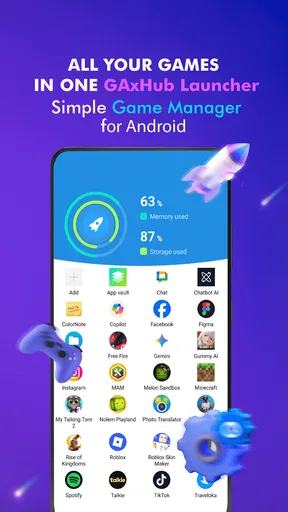
I find a launcher most useful when my games are scattered across several home-screen pages. The appeal here is having a place to find and organize installed games rather than hunting through folders or relying on memory. MC Tech’s app is free, and its library-and-demo category makes sense: it is primarily a companion for managing games, not a game in itself.
That distinction matters when deciding whether to install it. If you want a new title to play, a game store or recommendation service is the better starting point. If you already have games and want a more deliberate way to reach them, a hub can help. I’d treat its value as a matter of daily convenience, not as a promise that every game will run better.
Getting Started with Gaming Hub
First off, downloading and installing the Gaming Hub: Game Launcher App is a breeze. It's available for both Android and iOS, which is a win-win for everyone. Once you fire it up, you're greeted with a sleek and intuitive interface. The design is clean, and navigation feels smooth, which is a big plus. No one likes clunky interfaces, especially when all you want to do is jump into your favorite game.
Setting it up is pretty straightforward. The app automatically scans your device for installed games and organizes them neatly. It’s like having a personal gaming assistant that knows exactly what you need. I loved that it didn’t require much manual input — it’s smart enough to handle things on its own.
Make the library work for your habits
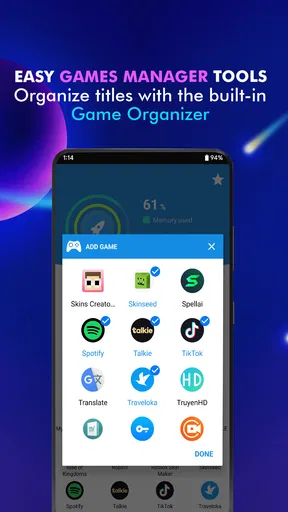
Automatic organization is a convenient first pass, but a list is only useful if it matches the way you choose what to play. I’d start by checking that the games you actually open appear in the hub, then arrange them around a real decision you make: a quick session, a longer evening game, or something you play with friends. If the app’s folder controls suit that approach, they can save a few taps without forcing you to reorganize your entire phone.
A practical example: after work, I might want a short puzzle game, while later I may have time for something that needs a longer uninterrupted session. Separating those options makes the first choice easier than scrolling through every installed title. The trick is to keep the system simple. A handful of meaningful groups is more useful than creating a folder for every mood and then forgetting where things went.
There is also a small trade-off with automatic scanning. A launcher can only help with games it recognizes and can surface; it does not replace the phone’s normal app drawer or make an uninstalled game available. I’d use it as a focused shortcut layer, while leaving the standard launcher as the dependable fallback for everything else.
Features Galore
Alright, let’s talk features. This app is packed with goodies that make gaming more enjoyable. One of the standout features is the customizable game folders. You can group your games by genre, mood, or even by the amount of time you have to play. It’s a neat way to keep things organized, especially if you have a ton of games installed.
Another feature I found super handy is the game booster option. It optimizes your device’s performance, giving you a smoother gaming experience. No more lag or stuttering, even on games that usually tax your system. It’s like a magic wand for your phone.
And then there’s the community feature. You can connect with other gamers, share tips, or even just chat about the latest game releases. It’s like having a mini social network dedicated to your gaming passion. If you’re someone who loves to interact with fellow gamers, this is definitely a feature you’ll enjoy.
Settings worth checking before a session
I’d approach any performance option with measured expectations. A booster may help manage how you start or organize a gaming session, but it cannot upgrade a phone’s processor, add memory, or fix a game’s own network problems. If a title still stutters, compare how it behaves before and after using the option, and pay attention to heat and battery drain rather than assuming a smoother moment proves a lasting change.
That is especially useful on an older or entry-level phone. Try one demanding game at a time, close anything you do not need, and keep the phone’s own battery and performance settings in mind. If the device becomes hot or the game feels worse, stop using the extra step and return to your normal launch routine. I would not run a booster simply because it is available; I’d keep it only if it makes a noticeable difference on the games I play.
The community area is another feature to treat according to your own habits. It may be enjoyable if you like discussing games, but it is not essential to the launcher’s basic role. If you prefer to keep gaming separate from social conversations, you can focus on the library and shortcuts instead. A hub should make the parts of gaming you care about easier, not turn every play session into another feed to check.
Faster patterns for repeat players
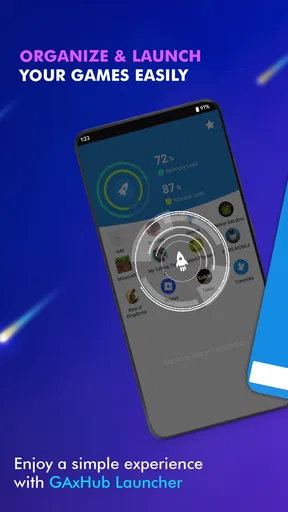
Once the library is in order, the best time-saving habit is to make the hub the first stop for choosing a game, then launch directly from the relevant group. That gives the organization a clear purpose and avoids duplicating every game shortcut across multiple home screens. I’d also review the groups occasionally: games you no longer play can be moved out of the everyday view, while current favorites stay easy to reach.
For a shared living room or a commute, the same setup can serve different needs without becoming complicated. Keep games that work well in short bursts together, and put titles that need more attention elsewhere. This is not a feature that changes the games; it is a way to make the next choice fit the time available. That distinction is why I see the strongest benefit in a library that is large enough to be mildly inconvenient, not necessarily enormous.
Screen capture and screenshots can fit into a repeatable routine too. If I want to save a memorable moment, I’d decide before opening a game whether I need a still image or a recording, then use the matching tool rather than fumbling around after the moment has passed. Capturing gameplay can use device resources and create files to manage, so it is sensible to record selectively and check where those clips are saved before filling storage with material I will never revisit.
Floating windows are more situational. They may suit someone who checks a guide or watches something during a wait, but they can also distract from play or cover part of the game. I’d use them only when a title has a genuine pause or loading interval, not as a default arrangement. On a smaller screen, switching between apps may be more comfortable than squeezing extra content beside the game.
In-Game Enhancements
What’s really cool about the Gaming Hub is its focus on enhancing your in-game experience. The app offers a screen recording feature, so you can capture your epic plays and share them with friends or on social media. There’s also a screenshot tool, perfect for capturing those brag-worthy moments.
For those who love to multitask, the app supports floating windows. You can browse the web or watch a video while waiting for your game to load. It’s a small addition, but it makes a big difference when you’re trying to make the most of your gaming time.
Where a launcher helps—and where it does not
Compared with the usual alternatives, this sits between a plain app drawer and a dedicated gaming service. A standard launcher is enough if you have only a few games or already keep them in one folder. A game store is better for discovering and downloading titles, while a community built around a particular game may offer deeper discussion than a general gaming hub. This app’s appeal is bringing management and gaming-oriented tools together in one place.
That combination will not suit everyone. If you value a minimal home screen, dislike maintaining folders, or rarely play mobile games, adding another layer may feel like unnecessary work. Likewise, if you expect a launcher to guarantee higher frame rates, remove lag from every title, or replace a phone’s built-in settings, I would skip it for that purpose. Its strongest case is convenience, with optional extras for people who will actually use them.
For a first-time user, it is reasonable to ask whether the app costs anything, whether it is meant for children, and whether an older phone can run it. It is free and rated for Everyone, and the minimum Android requirement is version 5.0. It was released on August 23, 2023; version 1.3.2 is the current version. The app has a 4.2 average from around 8,300 ratings, with 276 written reviews, and has passed 500,000 installs. Those figures suggest it has found an audience, but I’d still judge it by how well its workflow fits my own device and habits.
Advanced limits to keep in mind
A game launcher is not a substitute for the operating system’s tools. If you need to control notifications, battery use, storage, or app permissions, the phone’s settings remain the right place to make those decisions. Similarly, a recording or floating view can depend on how a particular game and device behave. I would test those options with a low-stakes session before relying on them to capture something important.
There is also a maintenance cost, even when it is small. A carefully arranged library can become stale as games are installed, removed, or abandoned. If you find yourself spending more time sorting than choosing, simplify the folders and let the automatic organization do more of the work. The hub should reduce friction; if it becomes another project to manage, the regular app drawer may be the better choice.
On privacy and device behavior, my practical advice is to read each on-screen request before accepting it and only enable functions you intend to use. A library organizer does not need to become central to every part of your phone. Keep your expectations tied to the task in front of you: finding games, arranging access, and using the available gaming tools where they fit.
Final Thoughts
So, what’s the verdict? The Gaming Hub: Game Launcher App is a fantastic addition to any mobile gamer’s toolkit. It’s user-friendly, packed with useful features, and genuinely enhances your gaming experience. Whether you’re battling it out in a high-stakes game or just relaxing with a casual puzzle, this app has got you covered. It’s like having an all-in-one gaming assistant right in your pocket.
If you’re looking to streamline your gaming sessions and get the most out of your device, give this app a try. You can download it directly from the app store, and trust me, you won’t be disappointed. Happy gaming!
Who I’d recommend it to
I’d recommend it most to someone who regularly plays several mobile games and wants a single, game-focused place to start. It makes particular sense if you like grouping titles by the kind of session you have time for, or if you sometimes capture gameplay and appreciate having those tools nearby. Newer players may also enjoy the straightforward idea of a dedicated library rather than a screen full of scattered icons.
I would be more cautious if you are content with your current setup. A person who plays one game now and then gains little from organizing a whole collection, and anyone who wants performance guarantees should look at device-specific troubleshooting instead. My mastery verdict is simple: use it as a tidy launch point, keep only the habits and tools that genuinely save time, and don’t mistake convenience features for a hardware upgrade.
Privacy and Permissions
See what permissions an app requests and how it handles your data.
- Photos/Media/Files
- read the contents of your USB storage, modify or delete the contents of your USB storage
- Storage
- read the contents of your USB storage, modify or delete the contents of your USB storage
- Wi-Fi connection information
- view Wi-Fi connections
- Other
- view network connections, full network access, close other apps, run at startup, prevent device from sleeping
Verdict
Strengths of GAxHub: Gaming Hub & Launcher
- Centralizes all games in one app
- Customizable themes and layouts
- Tracks playtime and achievements
- Includes game news and updates
- Optimizes device performance for gaming
Limitations of GAxHub: Gaming Hub & Launcher
- May require high storage space
- Occasional ads can be intrusive
- Some features need premium access
- Limited support for older devices
- Initial setup can be time-consuming
Similar Picks in This Category
View All
PGT: GFX, Launcher & Optimizer
Trilokia Inc.4.5

AusweisApp Bund
Governikus Service GmbH3.7

Cardboard
Google LLC3.2

Gamers GLTool with Game Tuner
Trilokia Inc.4.5

Multi Web Chat - Read Secretly
World Scan & Cleaner3.8

App Cloner Premium & Add-ons
App Listo1.9
Frequently Asked Questions
What is Gaming Hub: Game Launcher App?
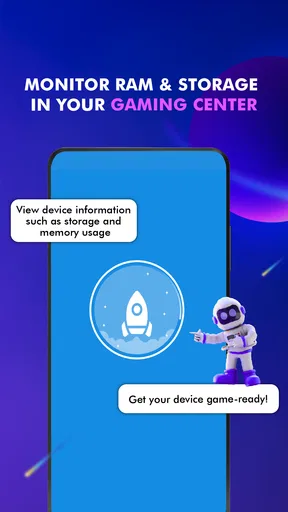
Gaming Hub: Game Launcher App is a comprehensive platform designed to organize and enhance your mobile gaming experience. It centralizes all your games in one place, allowing for easy access and management. With features such as game recommendations, performance boosters, and social connectivity, it aims to optimize how you engage with your mobile games.
How does Gaming Hub improve game performance?
Gaming Hub includes performance optimization tools that help enhance your device’s gaming capabilities. It offers features like RAM boosters and CPU optimizers to ensure smoother gameplay. These tools work to reduce lag and improve loading times, providing a more seamless gaming experience. This is particularly beneficial for devices with limited resources.
Is Gaming Hub compatible with all mobile games?
While Gaming Hub is designed to support a wide array of games, compatibility may vary depending on the specific requirements of each game. Most popular games are supported, but it's advisable to check the app’s compatibility list or test it with your games to ensure optimal performance and functionality on your device.
Does Gaming Hub require an internet connection?
Gaming Hub does not require a constant internet connection for all its features. However, certain functionalities, such as game updates, social sharing, and cloud save features, will need an internet connection. Offline gameplay is supported, but online features enhance the overall experience and provide more connectivity options.
Can Gaming Hub help manage in-game notifications?
Yes, Gaming Hub offers features to manage and customize in-game notifications. Users can control which notifications they receive, ensuring that gameplay is not interrupted by unnecessary alerts. This feature enhances focus and allows for a more immersive gaming experience by minimizing distractions.
